Help: Your first connection
Your ID and password, connecting, accepting a request, the session banner, the security code and ending a session.
Your ID and password
Under This computer, the main window shows Your ID: nine digits that stay the same, and a short Password. To get help, read your ID to your technician. With the ID alone, you are asked to accept the connection; with the ID and the password, they connect directly.
This computer
Connect to a remote computer
The password changes after every connection made with it, and you can make a new one at any time with the arrow next to it. For a fixed password, see unattended access.
Connect to a computer
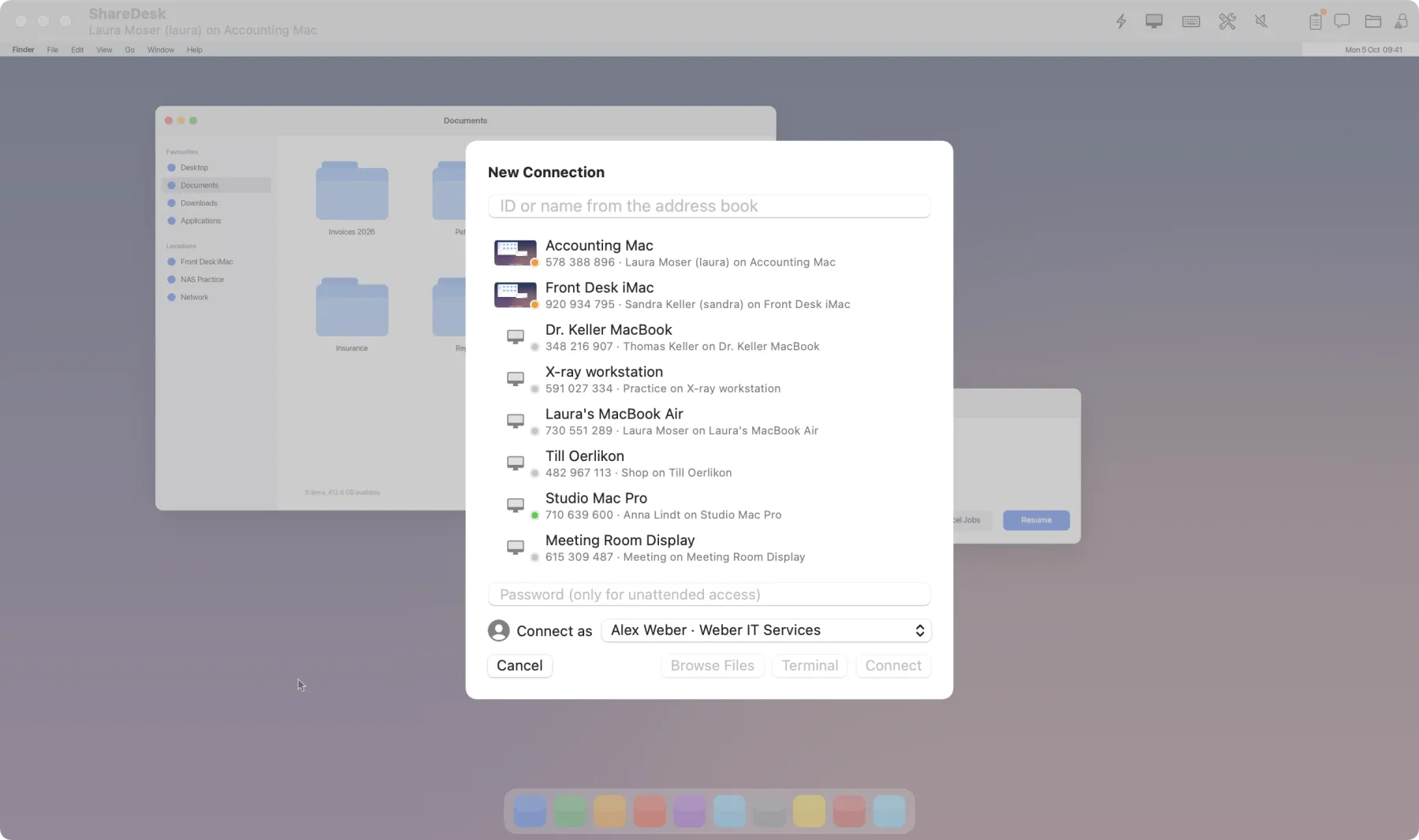
- In the main window, under Connect to a remote computer, type the Remote ID (and the password, if you have it).
- Choose under Connect as how the customer sees you: your name, company and photo.
- Click Connect. Until the customer accepts, you see Waiting for the remote user to accept.
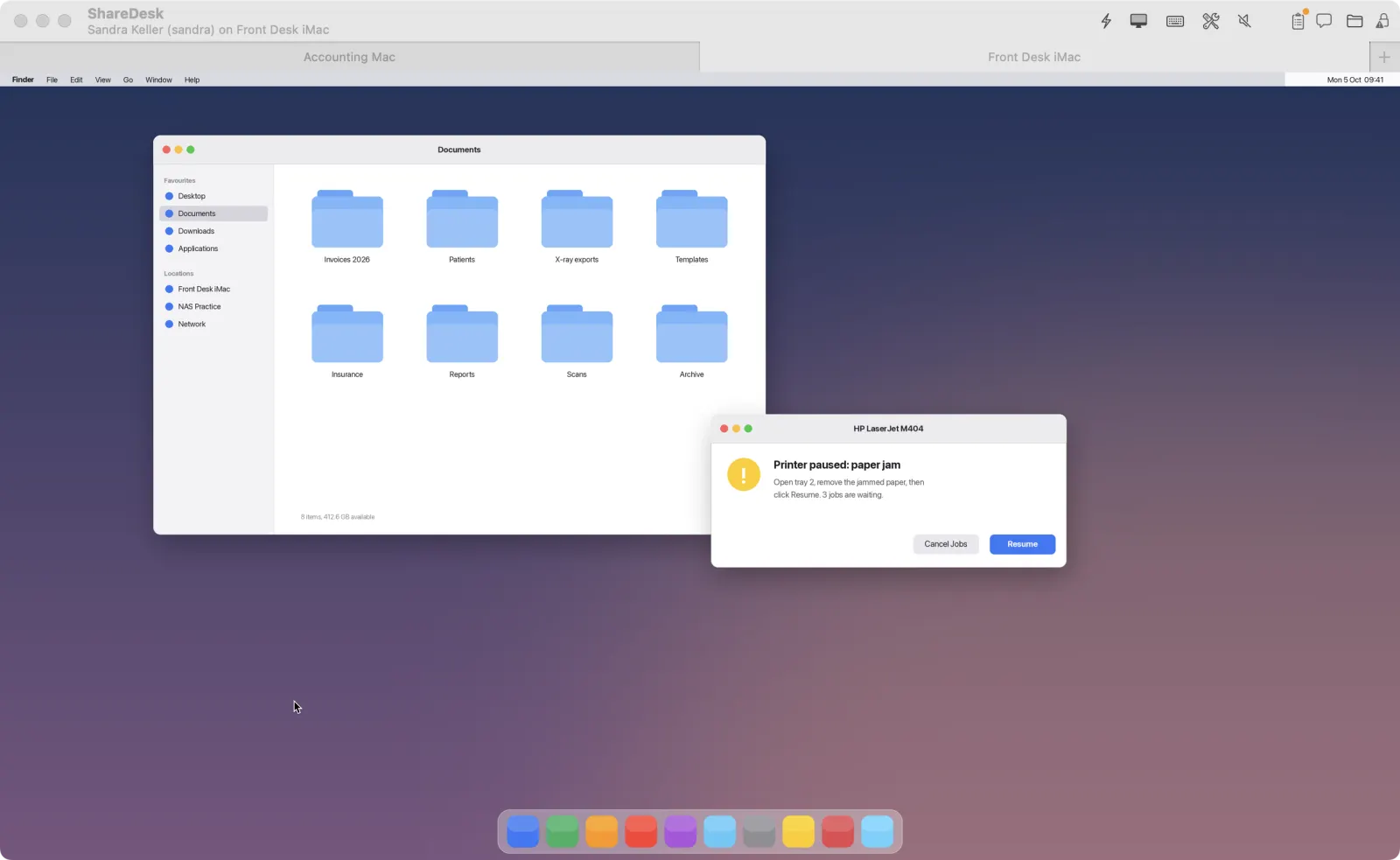
Next to it, Browse Files exchanges files without the screen and Terminal opens only a shell. More computers open as tabs: File › New Connection Tab (⌘T). Without the app, you can also connect from a browser with the web viewer.
Accept a request
On the customer's Mac a request appears with the technician's name, company and photo, their ShareDesk ID and where the request comes from. Under Allowed in this session, the customer decides what the technician may do: control, clipboard, files, sound, privacy mode, terminal, network and printing, each on its own.
Alex Weber wants to connect to this computer
Weber IT Services · ShareDesk ID 123 456 789
Allowed in this session
- Accept becomes active after a moment and doesn't react to the Return key, so nothing is accepted by accident.
- Dismiss declines; Block This ID refuses this ID from now on (Settings › Access).
- A request nobody answers closes after 60 seconds.
Only accept if you are expecting help from this person.
During the session
The technician works in the session window. Its toolbar has Monitors, Actions, Display, Keys, Tools, Sound, Notes, Chat, Files and Security. Keyboard shortcuts such as ⌘Tab go to the remote Mac; hold the right ⌘ key for a shortcut that should act on your own Mac.
The session banner
While someone is connected, the customer always sees a banner at the top of the screen: who is connected, Hide Screen (for example while typing a password) and End. After a few seconds it shrinks to a small circle; a click brings it back. A click on the text shows the details: who is connected, what they may do and the security code.
The security code
Both sides see the same six-digit security code: the technician under Security in the toolbar, the customer in the session details. If both codes match, nobody is in between. More in Security.
End a session
- Customer: End in the banner, in the main window, or in the menu bar under End session with ….
- Technician: close the session window or its tab (right ⌘ + W), or use End Session in the menu bar.
If the technician blocked the keyboard and mouse or blacked out the screen, the customer takes back control by pressing Esc three times.
Invite a customer with a link
Signed in, technicians can send an invitation instead of asking for the ID: Invite Customer… in the main window creates a link, valid for 30 days. The customer clicks it, ShareDesk opens (or they download it), and they choose This time only or Whenever needed (unattended access). Then the technician connects without the ID. See trusted technicians.