Help: Your account and address book
The technician's account, the address book with groups, tags and notes, sharing with your team, profiles and the session log.
Create an account
An account is only for technicians; customers never need one. Without it, the address book and profiles stay on your Mac. With it, they are the same on all your Macs and on the website, and you can work as a team.
Create a free account with your company, your name, e-mail and a password of at least 10 characters. It creates your team, with you as its administrator. Business use is billed per technician: see pricing.
Sign in in the app
In ShareDesk, open Settings… › Account, enter your e-mail and password and click Sign In. Your address book, shared computers and profiles then come from your account.
The address book
Show the address book with the book in the main window (⇧⌘B). The list on the left has All, Recent, Online, your groups, Shared with Me, Tags and Invited customers; a green dot means online. Double-click a computer to connect; its menu also has Browse Files, Open Terminal, Wake Up, Share… and more. During a session, Actions › Save to Address Book adds the computer.
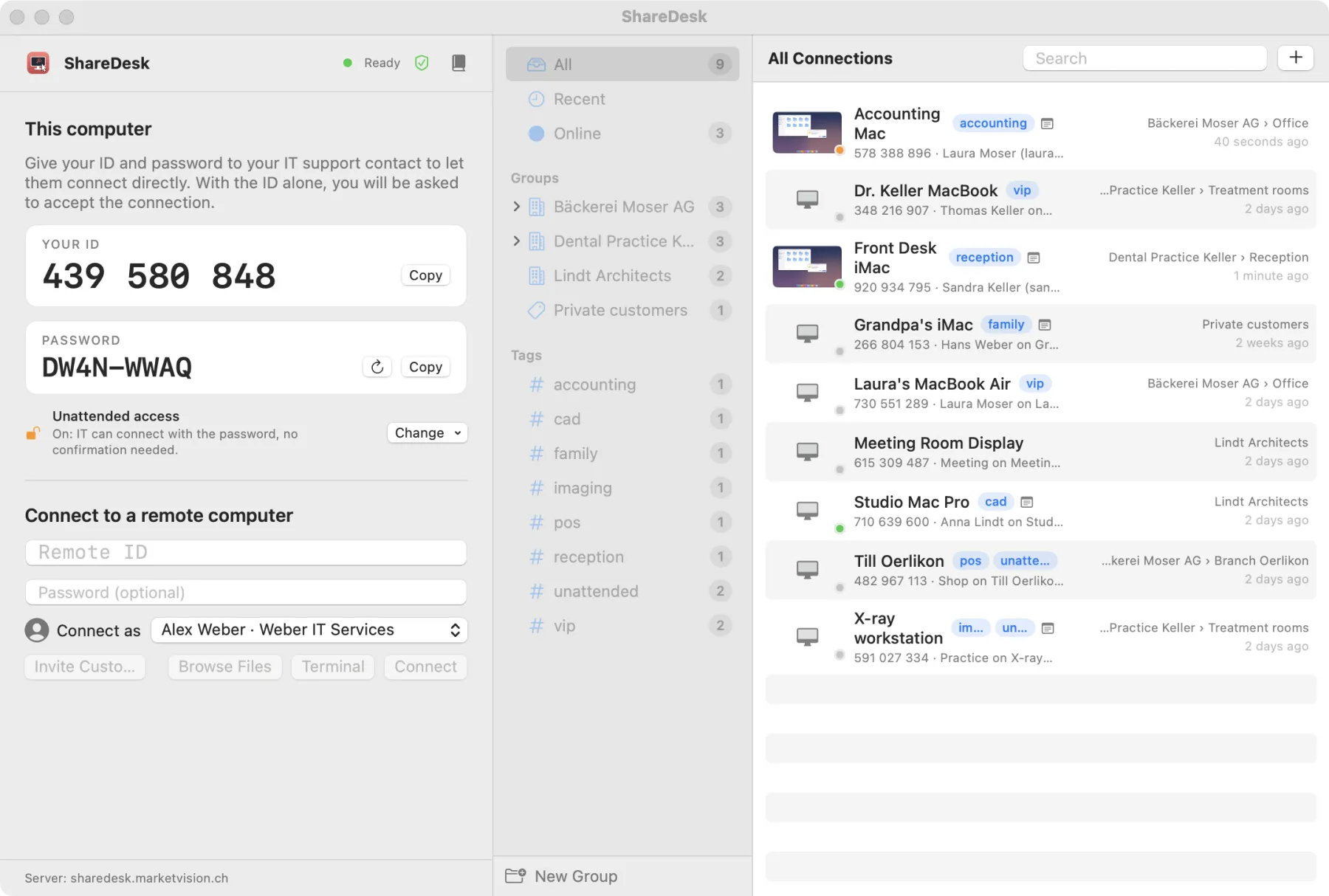
Organizations, departments and categories
Sort computers into groups of three kinds: organization (a customer), department and category, nested as deep as you like, for example Muster AG › Accounting › Laptops. Each group can have notes, such as contacts, opening hours or the Wi-Fi name; they appear above its computers and, during a session, under Notes.
Tags, notes and computer details
Give computers tags to find them quickly, and notes about where they are and what to watch out for. When you connect, ShareDesk notes the computer's details for you: who is signed in, the system version, processor, memory, disks, displays and addresses. You find them with the computer in the app and in your web account.
Share with your team
Share a computer or a whole group with a team member (Share…), with or without Can edit. A shared group includes its subgroups and computers. Team members are added by an administrator in the web account under Team (or in the app under Settings… › Team).
Profiles: how customers see you
Under Settings… › Profiles you keep one profile per company you work for: company, phone, e-mail, website and your portrait. Choose one under Connect as; the customer sees it in the connection request.
The session log
Window › Session Log (⇧⌘L) lists your sessions with their duration, transferred files, chat and notes, and exports them as CSV. With hourly rates and billing steps (Settings… › Time & Cost), it shows what each session costs. Signed in, the log is kept with your account; administrators see the whole team's sessions in the web account.