 ShareDesk
Help: Working in a session
The picture, talking with the customer, monitors and resolution, the speed test, managing a computer, the health check, scripts and the web viewer.
Picture and quality
In the session's Display menu, Picture sets how the remote screen comes to you:
- Sharp Text keeps text and code crisp and exact.
- Video suits a screen where a lot moves.
- Automatic shows Sharp Text and switches to video while a lot moves and Sharp Text can't keep up.
Each computer starts with the picture you last chose for it. The default for the others is in Settings… › Session, where Priority sets how soon Automatic changes to video, from quality to responsiveness. On Windows, the picture is in the session's ⋯ menu.
Talk with the customer
The toolbar's Sound menu plays the remote computer's sound and switches your microphone on, with Push to Talk if you prefer to hold a key while you speak.
To hear the customer too, choose Sound › Customer's Microphone. The customer sees it in the session banner, where the microphone shows orange while it is on, and can switch it off there at any time. With Talk both ways turned on in Settings… › Session, Sound › Talk with the Customer switches both microphones on and off together.
- When the session doesn't allow it, the person at the remote computer is asked first: Allow or Don't Allow. If nobody answers within 30 seconds, an unattended session switches the microphone on (nobody is there to ask); a session the customer accepted doesn't.
- Customers who are happy to be heard without a question turn on Switch on my microphone without asking in Settings… › Security. An organisation can switch the microphone off completely: IT departments.
- The Sound menu also sets the customer's volume and their echo cancellation; the microphone in the toolbar turns green while the customer is heard.
- Talking at the same time works best with headphones: through speakers, your microphone pauses while you hear the customer, so they don't hear themselves as an echo.

Monitors, resolution and virtual monitors
The toolbar shows the remote computer's monitors as numbers; click one to switch. The Display menu has more:
- Each Monitor in Its Own Window opens the other monitors in windows of their own, for example on your second screen. They close with the session.
- Remote Resolution fits the remote screen to your window, or sets one of its own resolutions. When the session ends, it goes back as it was.
- Add Virtual Monitor gives a remote Mac (macOS 11 and later) an extra monitor the size of your window, gone when the session ends. A Mac without any monitor, such as a Mac mini without one or a closed MacBook, gets one by itself.
The resolution and virtual monitors need control of the screen, and a virtual monitor can only be changed or removed by the technician who added it. On Windows, these are in the session's ⋯ menu.
The speed test
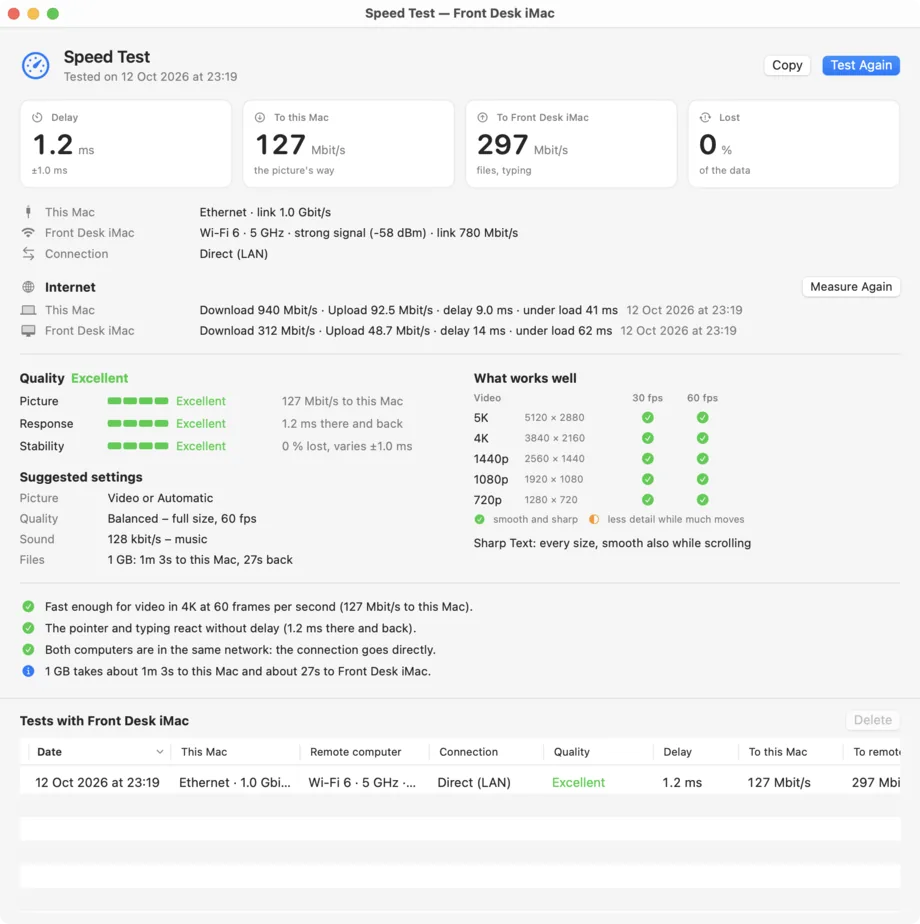
Is the line the problem? Choose Display › Speed Test…, or the button in the connection figures (on Windows ⋯ › Speed Test…). ShareDesk measures:
- the delay, the speed in both directions and what gets lost between the two computers;
- both computers' networks: Wi-Fi band and signal, cable speed, VPN;
- each computer's own internet speed: download, upload and delay;
- grades for picture, response and stability, which picture sizes and frame rates work well, and suggested settings.
The tests are kept with the computer, so you can compare them with earlier ones and find the best connection.
Manage a computer
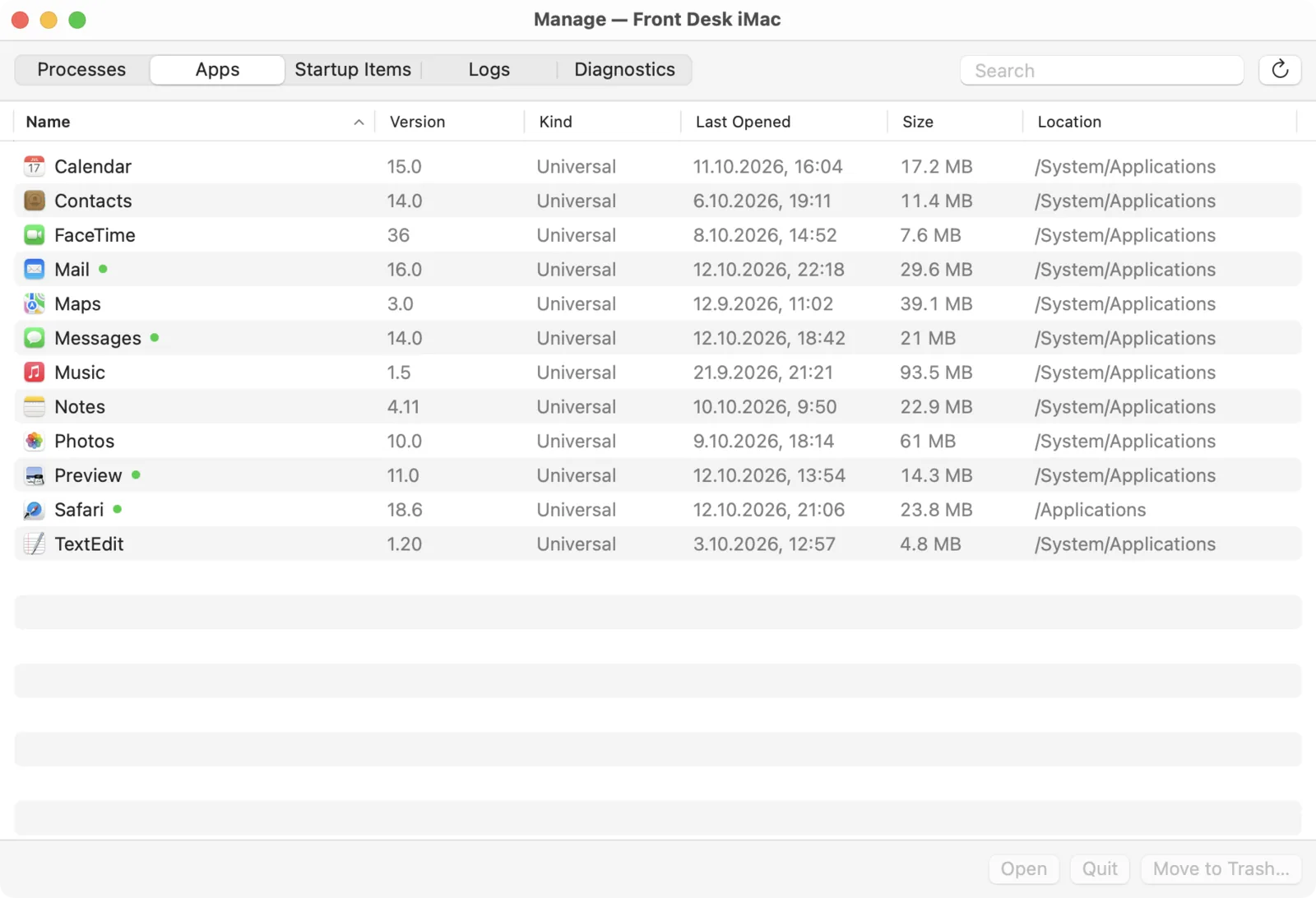
Tools › Manage Mac… (for a Windows computer Manage Computer…) shows the remote computer in sortable, searchable lists, without working on its screen:
- Processes (Mac) with their CPU and memory, to quit or force quit.
- Apps on a Mac, to open, quit or move to the Trash, with what each runs on; programs on Windows, with publisher and install date.
- Startup items: what starts by itself; the user's own can be removed.
- Logs: crash or error reports and the system or event log, with the customer's permission for files.
- Diagnostics: the network and Wi-Fi signal, internet speed, ping, name lookups compared across DNS servers, the route to a server, and how a website loads there. Devices in the customer's own network, such as a router's page, only with their permission for tunnels.
What you end or remove, and every network test, goes into the customer's session log. To manage a computer without its screen at all, right-click it in the address book and choose Manage Mac…: it opens in a session of its own, without the picture. That is part of ShareDesk Business, like the terminal.
The health check
When you connect, ShareDesk looks at how the computer is doing. If something needs attention, a small warning shows over the picture for a few seconds, and a triangle appears in the toolbar: orange, or red when it is critical. Click it to see the list.
- Disk: nearly full.
- Memory: short.
- Last restart: three weeks ago or longer.
- Backup: overdue: automatic backups are on, but the last one is a week old or more, or none has finished yet. This comes from Macs only for now.
To check a computer without opening its screen, right-click it in the address book and choose Health Check…: the same values in a window of their own. It connects like any session: with the saved password, or the person at the computer accepts. A computer with an older ShareDesk shows nothing.
Scripts on many computers
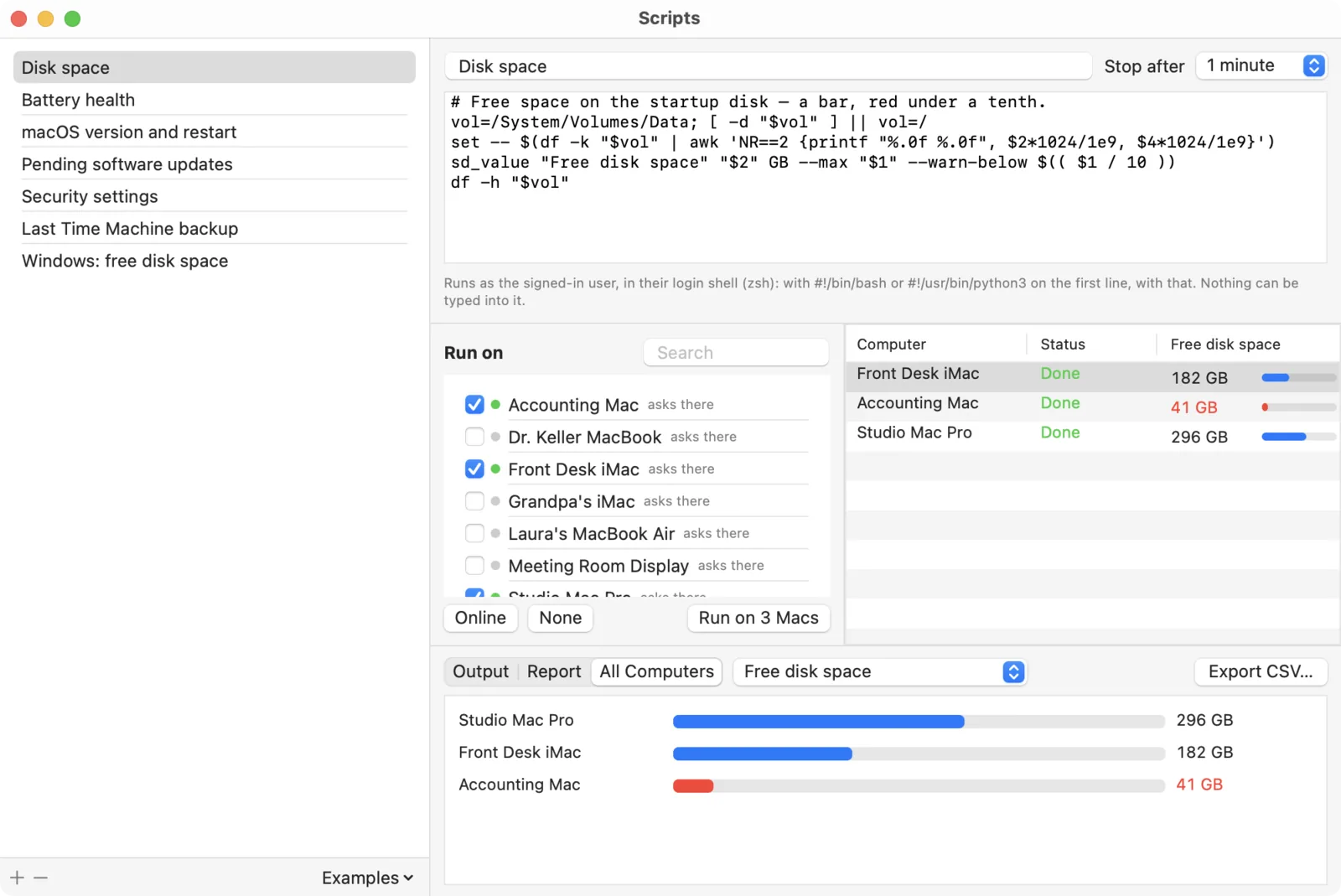
Choose Window › Scripts…, or Run Script… in the address book or a session's Tools menu. Pick one computer or many: the script runs on each as the signed-in user, in the shell on a Mac and in PowerShell on Windows. A computer whose unattended password you saved needs nobody there.
- Each computer's result and output appear in a sortable list. Output such as
dforpscan be shown as a table, and All Computers puts everyone's output into one table. - Scripts can report figures with
sd_value,sd_status,sd_tableandsd_row: they become columns across all computers, with a chart, a report per computer and the trend since earlier runs. Save the results as CSV. - Examples to start from: disk space, battery health, the macOS version, software updates, security settings and the last Time Machine backup.
Your scripts are kept for next time, and a script stops as soon as the customer switches off the terminal or control. Scripts are part of ShareDesk Business.
Help from a browser
Without the app, open the web viewer in a current desktop browser, type the ID and connect; the customer still uses the app. Signed in, the web viewer offers your team's profiles to connect as, and your address book with search, groups and who is online.
- App switcher: the browser keeps ⌘Tab for itself, so on a remote Mac press ⌥Tab instead. Keep ⌥ held, press Tab for the next app, ⇧Tab to go back, Q to quit or H to hide one, and let go of ⌥ to switch. The Apps button in the toolbar does the same.
- Dock and hot corners: move the pointer into the edge around the remote picture; it reaches the edge of the remote screen, so the Dock and hot corners open there.
- Chat: a window of its own that you can move and resize.
The web viewer follows your system's light or dark appearance.